
Up and running step by step.
Short guides for Firestick, Android TV, Smart TV, phones and tablets.
How sharp is 8K?
8K has 4 times the pixels of 4K and 16 times Full HD. For 4K and 8K you need a TV that supports it and fast internet.
1280 × 7200.9 million pixels
1920 × 10802.1 million pixels
3840 × 21608.3 million pixels
7680 × 432033.2 million pixels
Install on your device.
Short steps. Menu names can differ a little by device model.
Firestick / Fire TV
- Install the free Downloader app (orange icon, by AFTVnews) from the Amazon Appstore.
- Open Settings → My Fire TV → Developer Options → Install unknown apps and switch it on for Downloader. You only do this once.
- Open Downloader, select the address box and type the app code - digits only, no dots or spaces - then press Go.
- When the download ends, press Install, then Open. Let Downloader delete the installer file afterwards.
- The app shows a MAC address or Device ID on first start. Send us a photo of it on WhatsApp and we activate your line.
Android TV, Google TV & boxes
- Install Downloader from the Play Store.
- Open Settings → Apps → Security & Restrictions → Unknown sources and allow Downloader.
- Type the app code in Downloader and press Go.
- Press Install, then Open.
- Send us the MAC address or Device ID shown on the first screen.
Smart TV
- Android-based Smart TVs follow the Android TV steps above.
- On other Smart TVs, open the TV app store and install a supported player (ask us which one suits your TV).
- Open the app and note the MAC address or Device ID it shows.
- Send it to us on WhatsApp and we activate it.
Phone, tablet, PC & MAG
- Android phones and tablets: install the app from its card on the Apps page.
- Windows PC and MAG boxes are supported too - message us for the right setup.
- Lines with a user name and password also work in IPTV Smarters, TiviMate, Smart One and most other players.
- Add the login details we send you and start watching.
TV, phone, tablet, Firestick.
Start on the big screen, keep watching on your phone.
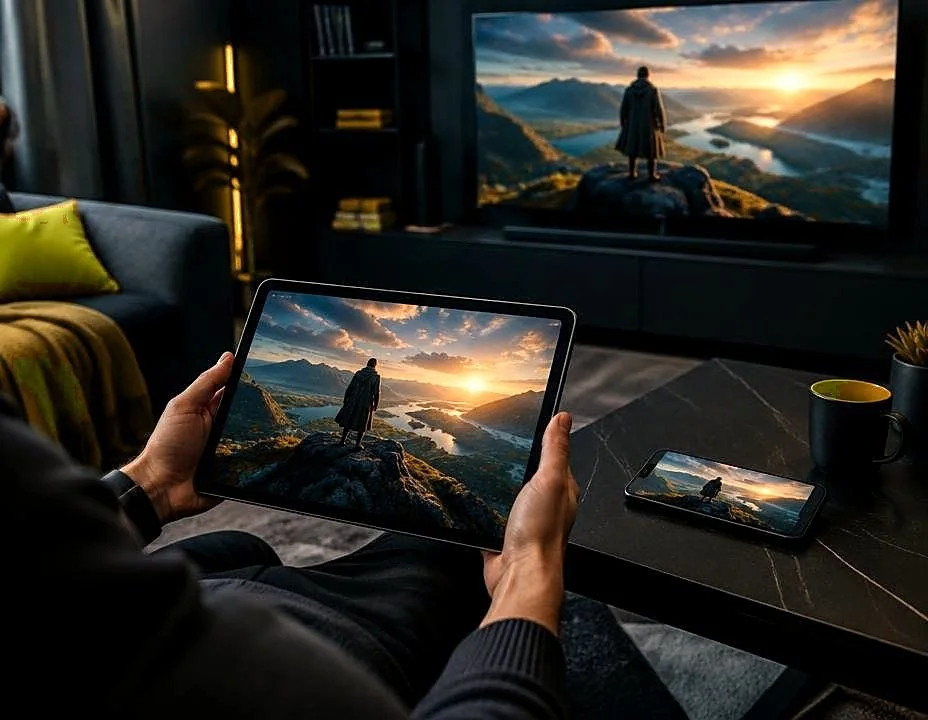
Watching in 4 simple steps.
No complicated sign-up. Everything is done over WhatsApp.
Choose a plan
Pick the plan that suits you.
Message us
Send the plan and your device.
Get your login
We send your login details (usually within minutes).
Install & watch
Use the app code, log in and enjoy.
Quick fixes.
Download stuck at 0%
The TV is not online. Check the Wi-Fi and type the code again.
Install stops with a warning
Downloader is not yet allowed to install unknown apps. Check the setting for your device.
Slow connection
The download step can take a minute or two. Let it finish.
Still stuck?
Take a photo of the TV screen and send it to us on WhatsApp.
Short guides.
Firestick, Android box or Smart TV?
A Firestick is the cheapest and easiest start and has a good remote. An Android TV box is usually faster and has more storage. A Smart TV needs no extra device, but its app choice and updates depend on the brand. If your TV feels slow, add a Firestick or box.
Fixing buffering: 8 checks, easiest first
1. Test your internet speed. 2. Move the device closer to the router or use a cable. 3. Restart the router. 4. Pause other downloads and streams at home. 5. Close and reopen the player app. 6. Try another player app. 7. Restart or update the device. 8. Message us so we can check the server and your line.
How much internet speed do I need?
About 10 Mbps for HD and 25 Mbps or more for 4K, for each screen that is watching. Two screens need about double. Test your speed on the same device you watch on.
Where do I find my MAC address?
The player app shows a MAC address or Device ID on its first screen after you install it. Send us a photo of that screen and we activate your line.
M3U, Xtream login or MAC activation?
M3U is a playlist link. Xtream login is a server address with user name and password, used by players such as IPTV Smarters and TiviMate. MAC activation links your line to one device, so you do not type a login. We tell you which one your app uses.
IPTV or cable and satellite?
IPTV needs no dish, no installer and no long contract, and works on devices you already own. It does need a steady internet connection.
Live sport checklist
Before you buy for sport, check these seven things: your channels, picture quality, a backup line, your internet speed, your devices, a trial, and support hours.